Backstory
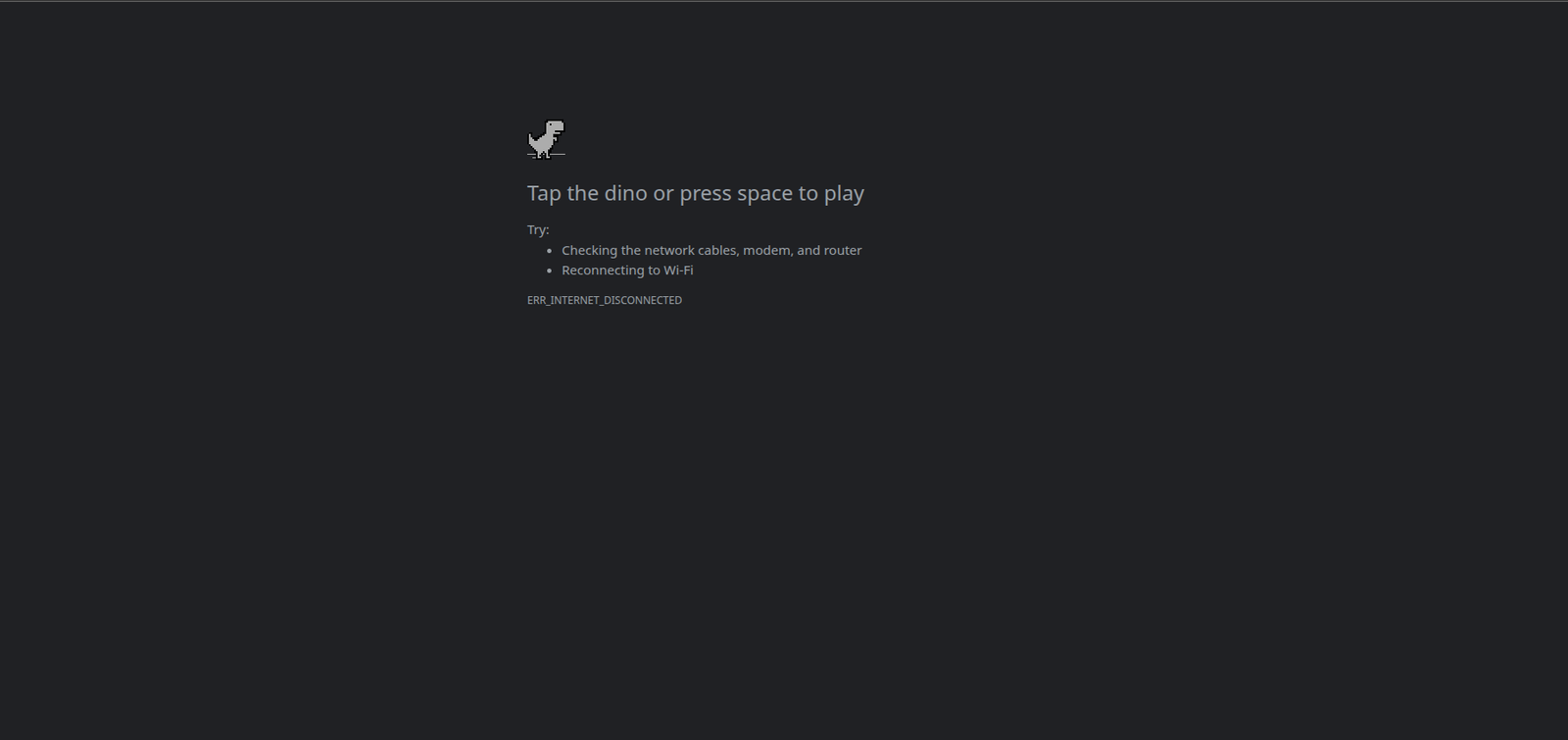
On a package delivery web application I developed, we hit a roadblock when drivers frequently traveled to far-flung areas where internet connection was really poor or simply disappeared. We needed a way to keep data accessible and allow delivery updates to take place offline. At the time, I had two choices: build a native mobile app or go for a Progressive Web App (PWA). I chose the PWA, and here’s why.
Why PWAs
PWAs emerged to bridge the gap between traditional web applications and native apps. The factors which made it the right choice for this project over a native mobile app:
- Zero Friction: No App Store downloads or large file installations. Drivers just need a URL.
- Offline-First: Standard sites break when the connection drops. PWAs use Service Workers to intercept network requests and serve cached content.
- Multi-Platform Savings: Instead of maintaining separate iOS (Swift) and Android (Java/Kotlin) teams, we used a single HTML/JS codebase.
- Instant Updates: I can deploy a bug fix immediately without waiting for Apple or Google to review the app.
For our team, the time constraint was the deciding factor that is we won't spend time waiting for the native mobile apps to be developed. Furthermore, most drivers used mid-range Android devices or iPhone 8s and up, all of which handle PWAs beautifully.
Requirements Specification for the PWA app
Our requirements were for the PWA app to:
- Be able to access a driver’s packages taken that day
- Access a package’s delivery details
- Update the delivery details for the package and also save a photo for proof of delivery
Building the PWA app
The manifest.json file
The manifest.json file is a simple JSON file that tells the browser how your Progressive Web App (PWA) should behave when "installed" on a user's desktop or mobile device. Its main use is to transform a standard website into a standalone app experience.
Without this file, a browser treats your site as just another tab, with it - the site can live on the home screen and function like an app downloaded from an app store. This file should typically reside on the /manifest.json path
Here is a sample of ours:
{
"name": "Offline-Able Delivery App",
"short_name": "Delivery App",
"start_url": "<http://127.0.0.1:3000/>",
"display": "standalone",
"theme_color": "#000000",
"background_color": "#ffffff",
"orientation": "any",
"status_bar": "black",
"splash": {
"640x1136": "/images/icons/splash-640x1136.png",
"750x1334": "/images/icons/splash-750x1334.png",
"828x1792": "/images/icons/splash-828x1792.png",
"1125x2436": "/images/icons/splash-1125x2436.png",
"1242x2208": "/images/icons/splash-1242x2208.png",
"1242x2688": "/images/icons/splash-1242x2688.png",
"1536x2048": "/images/icons/splash-1536x2048.png",
"1668x2224": "/images/icons/splash-1668x2224.png",
"1668x2388": "/images/icons/splash-1668x2388.png",
"2048x2732": "/images/icons/splash-2048x2732.png"
},
"icons": [
{
"src": "/images/icons/icon-72x72.png",
"type": "image/png",
"sizes": "72x72",
"purpose": "any"
},
{
"src": "/images/icons/icon-96x96.png",
"type": "image/png",
"sizes": "96x96",
"purpose": "any"
},
{
"src": "/images/icons/icon-128x128.png",
"type": "image/png",
"sizes": "128x128",
"purpose": "any"
},
{
"src": "/images/icons/icon-144x144.png",
"type": "image/png",
"sizes": "144x144",
"purpose": "any"
},
{
"src": "/images/icons/icon-152x152.png",
"type": "image/png",
"sizes": "152x152",
"purpose": "any"
},
{
"src": "/images/icons/icon-192x192.png",
"type": "image/png",
"sizes": "192x192",
"purpose": "any"
},
{
"src": "/images/icons/icon-384x384.png",
"type": "image/png",
"sizes": "384x384",
"purpose": "any"
},
{
"src": "/images/icons/icon-512x512.png",
"type": "image/png",
"sizes": "512x512",
"purpose": "any"
}
],
"shortcuts": [
{
"name": "Shortcut Link 1",
"description": "Shortcut Link 1 Description",
"url": "/shortcutlink1",
"icons": [
{
"src": "/images/icons/icon-72x72.png",
"type": "image/png",
"purpose": "any"
}
]
},
{
"name": "Shortcut Link 2",
"description": "Shortcut Link 2 Description",
"url": "/shortcutlink2",
"icons": [
[]
]
}
]
}
You can get some more info on the structure of the manifest.json file on the MDN docs: https://developer.mozilla.org/en-US/docs/Web/Progressive_web_apps/Manifest
The service worker JS file
The service worker is the "brains" of the PWA. It is essentially a script that your browser runs in the background, separate from your web page.
Its main use is to handle network requests and background tasks, even when the web page itself isn't open.
How It Works (The Lifecycle)
A Service Worker operates on a specific lifecycle to ensure it doesn't break the site while updating:
- Registration: The main JavaScript file tells the browser where the Service Worker file lives.
- Installation: The browser downloads the script and prepares the cache. This is usually where you'd save your "offline" files.
- Activation: The Service Worker takes control of the page.
- Fetch: This is the most common state, where it listens for every network request and decides whether to go to the Cache or the Network.
Key Constraints
- HTTPS Only: Because Service Workers can intercept network requests and modify responses, they are a massive security risk if hijacked. Therefore, they only work on secure (HTTPS) connections.
- No DOM Access: A Service Worker cannot directly change the HTML on your page (the DOM). It communicates with your main script via the
postMessage API.
My service worker js file implementation is outlined below:
First, I specified a cache name - its based on time so as to ensure a unique cache is stored each time and an array consisting of routes in the web app to cache. The cached routes will be rendered from the cached HTML once the network isn’t available - this ensured package delivery details were always available
var staticCacheName = "pwa-v" + new Date().getTime();
const pathsToCache = [
'/dashboard',
'/offline'
];
After that, I had to implement the install where I needed to cache some of the package delivery pages for the logged in driver. I had implemented an API endpoint(/cache-files in this case) in my server to get this information. I then proceed to cache these paths.
self.addEventListener("install", async (event) => {
this.skipWaiting();
const request = await fetch('/cache-files');
const response = await request.json();
for (let index = 0; index < response.length; index++) {
pathsToCache.push(response[index]);
}
event.waitUntil(
await caches.open(staticCacheName)
.then(cache => {
return cache.addAll(pathsToCache);
})
)
});
Then, I had to implement the activation, a key part was to clear out other caches which were invalid. This was done on the caches.delete(cacheName) line below
self.addEventListener('activate', event => {
event.waitUntil(
caches.keys().then(cacheNames => {
return Promise.all(
cacheNames
.filter(cacheName => (cacheName.startsWith("pwa-")))
.filter(cacheName => (cacheName !== staticCacheName))
.map(cacheName => caches.delete(cacheName))
);
})
);
});
Finally, implementing the “fetch” to intercept requests for GET type it just had to read from cache if it wasn’t present it serves the offline page cached of particular interest is the “POST” which was only possible when drivers were updating the packages. If the network wasn't available I cloned the post request and sent a message to the client JS with the data in the POST request.
self.addEventListener("fetch", async (event) => {
const req = event.request.clone();
if (req.clone().method == "GET") {
event.respondWith(
caches.match(event.request)
.then(response => {
return response || fetch(event.request);
})
.catch(() => {
return caches.match('offline');
})
)
}
if (req.clone().method == "POST") {
event.respondWith(
fetch(event.request.clone()).catch(async function () {
const client = await self.clients.get(event.clientId);
var newObj = {};
event.request.formData().then(formData => {
for (var pair of formData.entries()) {
var key = pair[0];
var value = pair[1];
newObj[key] = value;
}
event.respondWith(
client.postMessage({
message: "Post unsuccessful.",
alert: "Form submission unsuccessful",
postedData: newObj
})
)
})
})
)
}
});
The HTML to marry the manifest.json and service worker
This file houses the “instructions” on the manifest.json file path as well as the service worker. It also handles the message from the service worker
Of importance in the POST request were two images: one of the delivered package and the other was a signature which was just some scribbling on a JS canvas which we also converted to an image. The other section was some additional package info like where actually delivered in case there was a change in what was specified. This info is sent to the client from the service worker and it is handled in the store() function.
Once network connectivity is regained, the info in local storage is processed via the processStore() function and data sent to the server for storage
<head>
...
<link rel="manifest" href="/manifest.json">
<meta name="theme-color" content="#000000">
<meta name="mobile-web-app-capable" content="yes">
<meta name="application-name" content="Delivery App">
<link rel="icon" sizes="512x512" href="/images/icons/icon-512x512.png">
<meta name="apple-mobile-web-app-capable" content="yes">
<meta name="apple-mobile-web-app-status-bar-style" content="black">
<meta name="apple-mobile-web-app-title" content="Delivery App">
<link rel="apple-touch-icon" href="/images/icons/icon-512x512.png">
<link href="/images/icons/splash-640x1136.png"
media="(device-width: 320px) and (device-height: 568px) and (-webkit-device-pixel-ratio: 2)"
rel="apple-touch-startup-image" />
<link href="/images/icons/splash-750x1334.png"
media="(device-width: 375px) and (device-height: 667px) and (-webkit-device-pixel-ratio: 2)"
rel="apple-touch-startup-image" />
<link href="/images/icons/splash-1242x2208.png"
media="(device-width: 621px) and (device-height: 1104px) and (-webkit-device-pixel-ratio: 3)"
rel="apple-touch-startup-image" />
<link href="/images/icons/splash-1125x2436.png"
media="(device-width: 375px) and (device-height: 812px) and (-webkit-device-pixel-ratio: 3)"
rel="apple-touch-startup-image" />
<link href="/images/icons/splash-828x1792.png"
media="(device-width: 414px) and (device-height: 896px) and (-webkit-device-pixel-ratio: 2)"
rel="apple-touch-startup-image" />
<link href="/images/icons/splash-1242x2688.png"
media="(device-width: 414px) and (device-height: 896px) and (-webkit-device-pixel-ratio: 3)"
rel="apple-touch-startup-image" />
<link href="/images/icons/splash-1536x2048.png"
media="(device-width: 768px) and (device-height: 1024px) and (-webkit-device-pixel-ratio: 2)"
rel="apple-touch-startup-image" />
<link href="/images/icons/splash-1668x2224.png"
media="(device-width: 834px) and (device-height: 1112px) and (-webkit-device-pixel-ratio: 2)"
rel="apple-touch-startup-image" />
<link href="/images/icons/splash-1668x2388.png"
media="(device-width: 834px) and (device-height: 1194px) and (-webkit-device-pixel-ratio: 2)"
rel="apple-touch-startup-image" />
<link href="/images/icons/splash-2048x2732.png"
media="(device-width: 1024px) and (device-height: 1366px) and (-webkit-device-pixel-ratio: 2)"
rel="apple-touch-startup-image" />
<meta name="msapplication-TileColor" content="#ffffff">
<meta name="msapplication-TileImage" content="/images/icons/icon-512x512.png">
<script type="text/javascript">
if ('serviceWorker' in navigator) {
navigator.serviceWorker.register('/serviceworker.js', {
scope: '.'
}).then(function (registration) {
console.log('PWA: ServiceWorker registration successful with scope: ', registration.scope);
}, function (err) {
console.log('PWA: ServiceWorker registration failed: ', err);
});
navigator.serviceWorker.addEventListener('message', function (event) {
alert(event.data.alert);
if (event.message === 'Post unsuccessful') {
store(event.data.postedData);
}
});
}
function store(data) {
try {
localStorage.setItem(`newPost${new Date().getTime()}`, JSON.stringify(data));
alert('Data stored will sync when online');
} catch (e) {
if (e.name === 'QuotaExceededError') {
alert('Storage is full! Please find a connection to sync your data.');
}
}
}
let amountToSync = 0;
const storage = localStorage;
for (const key of Object.keys(storage)) {
if (key.includes('newPost')) {
amountToSync += 1;
}
}
window.addEventListener('load', async () => {
if (document.querySelector('#offlineCount')) {
document.querySelector('#offlineCount').innerHTML = amountToSync;
document.querySelector('#offlineCount').parentElement.addEventListener('click', async () => {
await processStore();
})
}
})
async function processStore() {
const storage = localStorage;
const dataToPost = [];
for (const key of Object.keys(storage)) {
if (key.includes('newPost')) {
dataToPost.push([key, storage[key]]);
}
}
let loop = 0;
if (dataToPost.length > 0) {
alert("Starting sync from offline data");
for (const data of dataToPost) {
let formData = new FormData();
const formInput = JSON.parse(data[1]);
formData.append('code', formInput.code);
formData.append('received_by', formInput.received_by);
formData.append('remarks', formInput.remarks);
formData.append('image_extension', formInput.image_extension);
formData.append('image', formInput.image);
formData.append('signature_extension', formInput.signature_extension);
formData.append('signature', formInput.signature);
const request = await fetch(`/package-update/${formData.code}`, {
method: 'POST',
headers: {
'CSRF-TOKEN': formInput.token,
},
body: formData
})
const response = await request.json();
if (response.ok) {
localStorage.removeItem(data[0]);
}
}
alert("Synced all offline data");
}
}
</script>
...
</head>
From the above, the drivers could come to the main warehouse and get the packages from the store - update their package info on delivery once they deliver and when they are back online the syncing of the data online. In short, I was able to deliver the app offline (pun intended🙂)
One Gotcha For You
It is important to remember that localStorage is not infinite; most mobile browsers cap it at around 5MB. In our case, since the delivery personnel were using mid-range devices with modest cameras, the compressed photo remained small enough that we didn't hit this ceiling. Though I still impelemented the alert if it was ever reached.
However, if your application handles high-resolution images or a high volume of offline entries, you might want to look into IndexedDB. It offers much larger storage capacities and is better suited for complex data blobs, though it does come with a slightly steeper learning curve.
Parting Shot
Well, the issue was resolved and I continually check on new PWA capabilities since then. Especially as phones become more powerful perhaps it will be truly indistinguishable as to when an app is native or web based.
I heavily referenced MDN docs for this so you can too: https://developer.mozilla.org/en-US/docs/Web/Progressive_web_apps
If you have any feedback, you can reach out on the form below.